
Sometimes, for legal or ethical reasons, you may want to filter out certain search results serverside. It is possible to filter out search results for files whose filenames or paths contain blacklisted keywords.
NOTE: Search filtering cannot filter direct user searches because those are peer-to-peer.
Filters can be applied globally across the entire server, or on a per-room basis, or a mix of both.
Filter Match Modes
Keywords can be matches using several modes:
SubstringAny instance of the word is matched, even if within another word. For example,
catwill match tocats,concatenate,category, etc.Whole WordOnly whole words will be matched. For example,
stackwill match tostack, but notstackable,stacks, etc.Regular ExpressionTerms matching the specified regular expression will be matched. For example,
c[a-z]twill match tocat,cut,cot, etc.
Note that all match modes are case-insensitive.
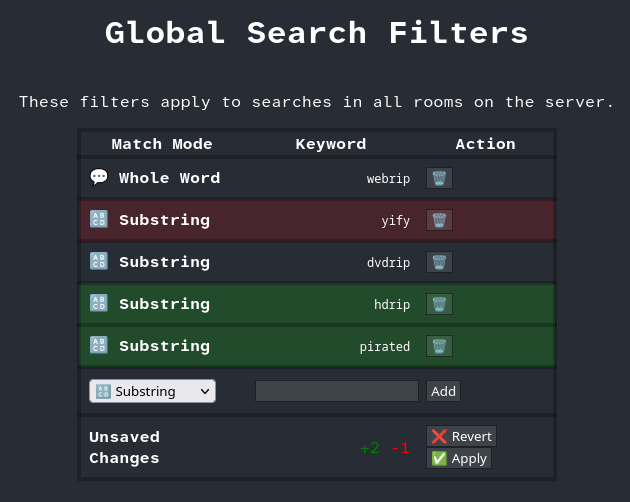
Adding From the Admin UI
If you have the admin UI set up, you can add keywords from there.
Click the 🚩 Global Search Filters button to change global filters, or click on a room and then click
🚩 Search Filters to change the room-specific filters.
Adding From the RPC or CLI
If you are running the server in a terminal or have access to it via the RPC client, you can use that to add keywords.
Type help to see all the available blacklist commands.
Currently, these are the commands that exist for managing blacklisted keywords:
addglobalblacklistpolicies <substring|whole|regex> <keywords... (one or more)>addroomblacklistpolicies <room> <substring|whole|regex> <keywords>removeglobalblacklistpolicies removeglobalblacklistpolicies <keywords>removeroomblacklistpolicies <room> <keywords>getblacklistpolicies [room]